Master E-Reader Annotations: Export Highlights to Notion & Readwise
📚 Export Kindle/Boox Highlights to Notion + Readwise (So Your Notes Aren’t Trapped)
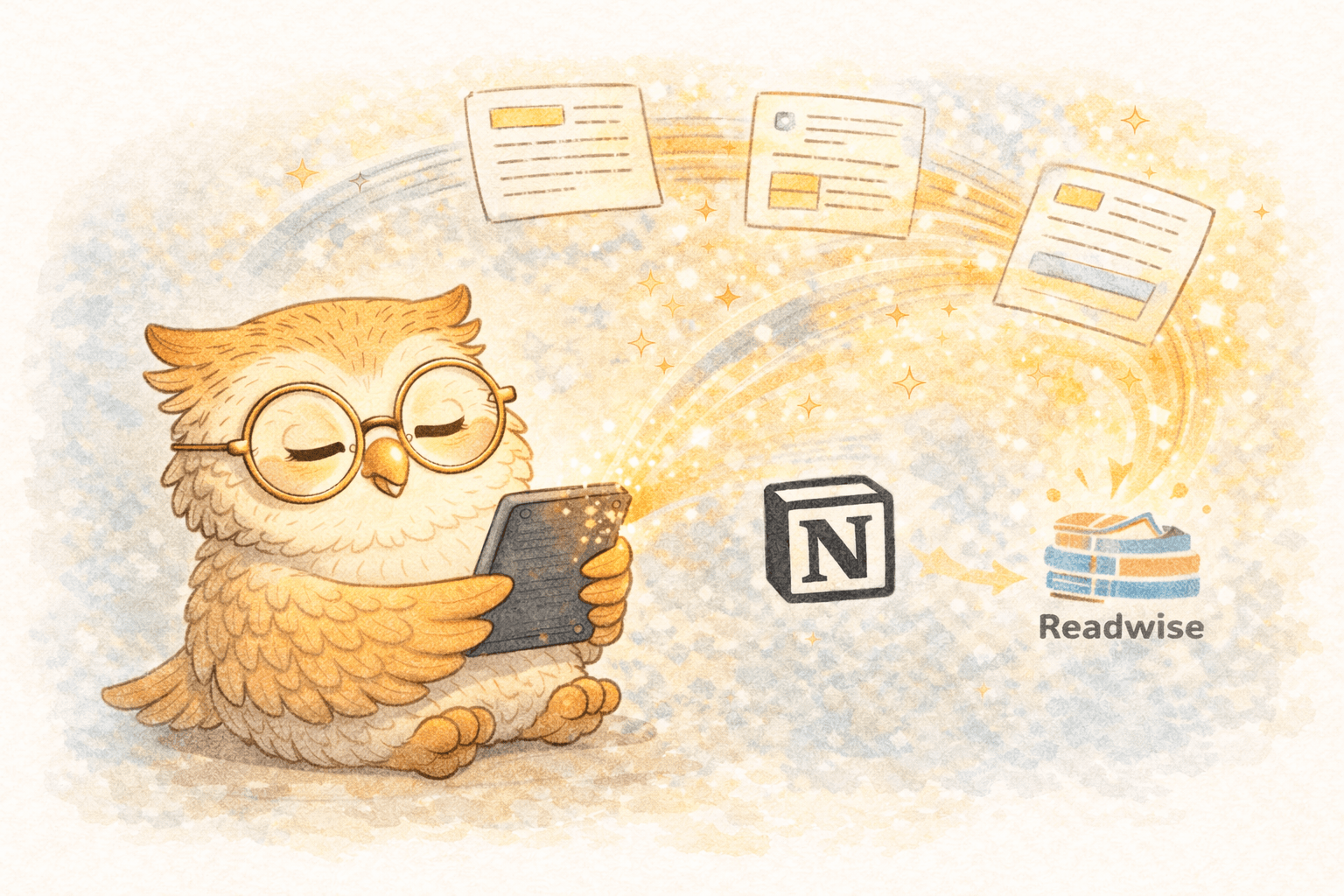
You know that feeling when you highlight something brilliant… then it disappears into your e-reader like a message in a bottle? 🫠
That’s the problem: e-ink is amazing for reading, but your highlights are only valuable if they leave the device and become searchable, reviewable, and reusable.
This guide shows a clean workflow to export and use your highlights in Readwise and Notion—and how LibSpace makes the whole pipeline effortless by fixing the “getting content onto the device” part.
💡 Why exporting highlights matters (aka “stop wasting your best thoughts”)
Highlights and annotations are compressed insight:
- the parts you actually cared about
- the parts you’ll want later for writing, research, decisions, strategy, etc.
- the breadcrumbs that connect ideas across books/papers/articles
But they only compound if you can:
- 🔎 search them instantly
- 🔁 review them regularly
- 🧩 connect them across sources
- 🧠 reuse them in writing/projects
If they’re stuck on Kindle/Boox, they’re basically decorative.
🧠 The ideal system: a simple 3-part pipeline
1) Input: get content onto e-ink fast
You want “one click” from browser → e-reader, not “download → rename → email → wait → hope.”
2) Reading: annotate in a distraction-free environment
E-ink helps you read longer and highlight better. That’s the whole point.
3) Extraction + synthesis: export highlights into tools that work
- Readwise = daily resurfacing + consolidation
- Notion = your structured, searchable knowledge base
This setup makes your reading usable.
🔥 Readwise: the annotation hub (where highlights go to become memory)
Readwise is best at one thing: making sure your highlights don’t die quietly.
What Readwise does well
- 📥 pulls highlights from supported sources (Kindle is the big one)
- 🏷️ tagging + organization
- 📬 daily digest emails to resurface highlights (the killer feature)
- 🔌 exports to downstream tools (Notion, Obsidian, etc.)
Kindle → Readwise (the easy win)
- Create a Readwise account
- Connect Kindle/Amazon highlights (Readwise guides you through it)
- Wait for the initial sync (first sync can take a bit depending on library size)
- Start getting a daily highlight digest
Result: your Kindle highlights become searchable and reviewable immediately.
Boox → Readwise (usually “export then import”)
Boox is more flexible, but less standardized. Common approaches:
- export highlights/annotations from Boox as text/PDF
- import into Readwise manually (or via supported formats/workflows)
Result: still centralized, just less “automatic” than Kindle.
🗂️ Notion: the long-term knowledge warehouse (where highlights become work)
Notion is where you turn “highlight collections” into:
- literature review databases
- project research dashboards
- topic-based libraries
- writing inputs
A Notion database that actually works (minimal but useful)
Create a database called Reading Library with properties like:
- Title (text)
- Author / Source (text)
- Type (select: Article, Paper, Book, Newsletter)
- Topic (multi-select)
- Status (select: To Read, Reading, Done)
- Date Read (date)
- Source URL (url)
- Highlights (text / long text)
- My Notes (text / long text)
- Rating (1–5)
Then add views:
- 📌 “This Week” (Status = Reading/To Read)
- 🧪 “Research Papers” (Type = Paper)
- ✍️ “Writing Inputs” (tagged for a project)
- ⭐ “Best Stuff” (Rating ≥ 4)
Readwise → Notion
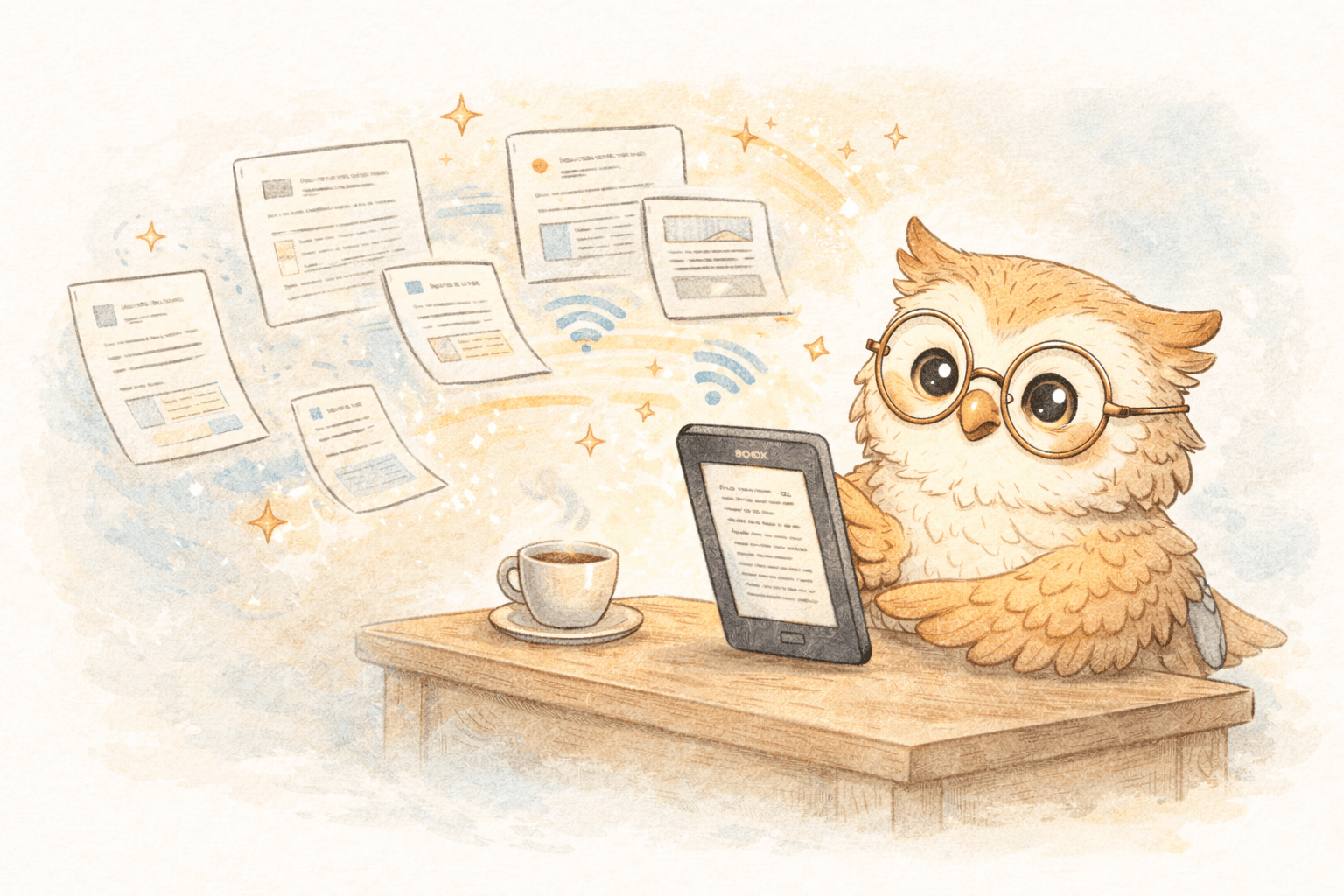
Readwise can push highlights into Notion automatically via integration.
Best practice:
- Readwise stores the raw highlights
- Notion stores your curated “working notes” + project organization
Notion is your system of record. Readwise is your recall engine.
🚀 Where LibSpace fits: the missing front door
Most people obsess over exporting highlights… while still failing at the earlier step: they don't consistently get content onto their e-reader, so they don't consistently annotate.
LibSpace fixes that input problem:
- ⚡ one-click saving from the browser
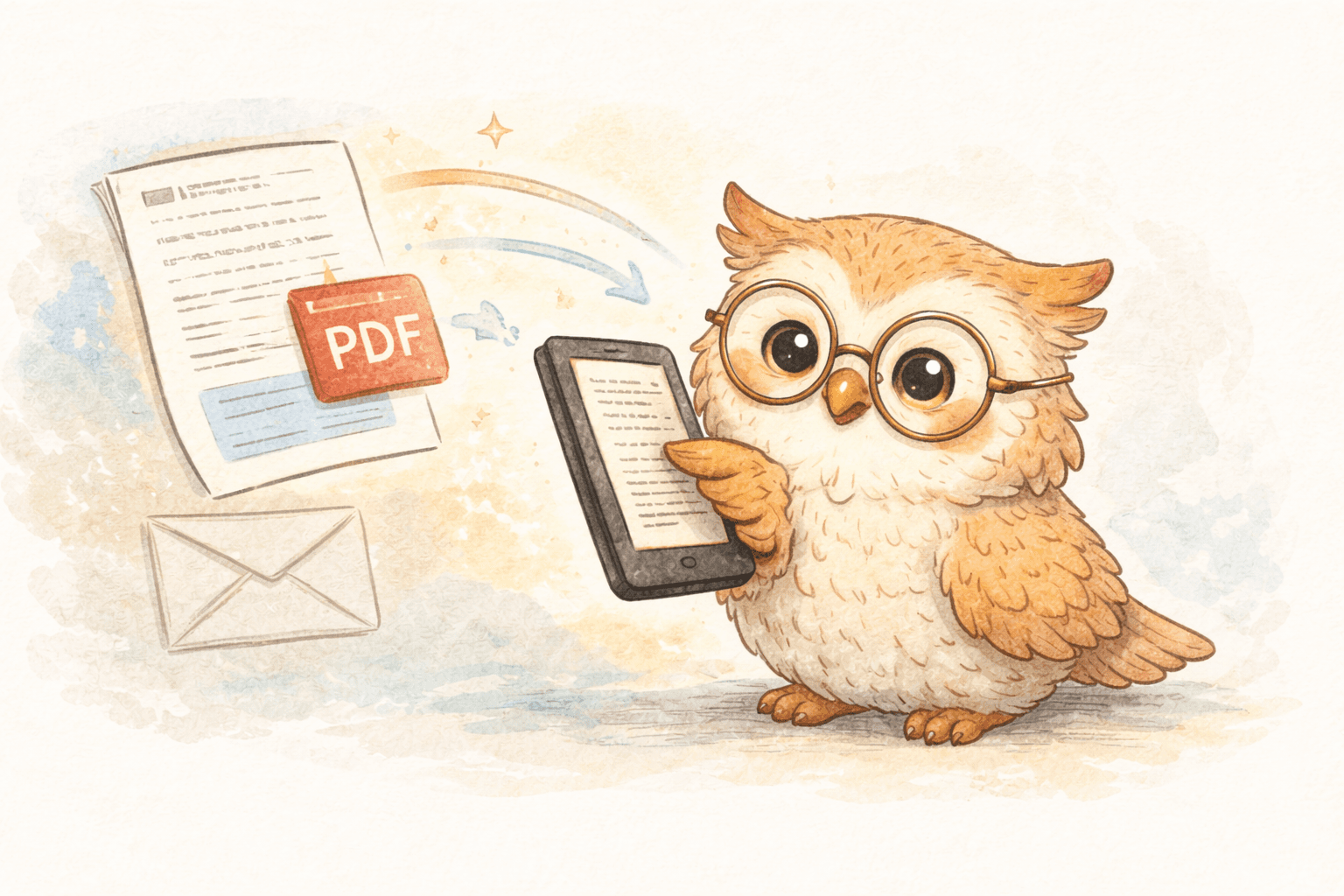
- 📚 fast delivery to e-readers (Kindle, Boox, or any device that syncs with Google Drive or Dropbox)
- 🧼 formatting optimized for e-ink (less clutter, better reading)
LibSpace integrates directly with Kindle and Boox devices. Plus, if your e-reader supports Google Drive or Dropbox (like Supernote, PocketBook, or others), LibSpace works with those too.
So your loop becomes: Discover → Save → Read → Highlight → Export → Review → Reuse
Without friction, this actually becomes a habit.
✅ Step-by-step: build the system in under an hour
Step 1: Pick your setup
- Best overall: Readwise + Notion
- Review-heavy: Readwise first, Notion later
- Organization-heavy: Notion + scheduled reviews
Step 2: Connect Kindle highlights to Readwise
- Connect account
- Sync highlights
- Turn on daily digest
Step 3: Create your Notion Reading Library database
- Add properties + views
- Keep it simple (you can get fancy later)
Step 4: Connect Readwise → Notion export
- Map fields cleanly
- Decide: one page per source (recommended)
Step 5: Fix your input with LibSpace
- Install extension
- Save a few real articles/papers you actually want
- Verify they hit your device quickly
- Read + highlight the same day (momentum matters)
🛠️ Common failure modes (and how to avoid them)
“I highlight everything”
Congrats, you invented noise.
- Aim for ~5–10% highlighted per piece
- Add a short note on why it matters
“I never review highlights”
That’s why Readwise exists.
- Commit to 5 minutes/day on the digest
- If you skip a week, your system becomes a graveyard
“My Notion got too complicated”
It always does.
- Start with 5–10 topics max
- Do quarterly cleanup, not daily perfection
📣 Strong conversion CTA
If your highlights are stuck on a device, you don’t have “notes.”
You have lost opportunities.
Build the loop:
- LibSpace to get content onto e-ink fast (so reading happens)
- Readwise to extract + resurface highlights (so memory happens)
- Notion to organize + reuse insights (so work happens)
Try it for 30 days with real reading—not aspirational reading.
Save the things you actually want to finish. Highlight like you mean it. Export. Review.
If your notes don’t become easier to find and use within a week, dump it.
But if they do… you just turned reading into a compounding asset. 📈
Darcy Reno
Founder of LibSpace. 25+ years in technology leadership across the media and entertainment industry — including roles at Constellation Software, Electronic Arts, and Technicolor, and working alongside studios like DreamWorks Animation, Disney, and Nickelodeon. A passionate reader, Darcy built LibSpace to bridge the gap between online content and e-readers, with a focus on long-form articles, research, and journalism.
Try LibSpace Free for 30 Days
Send articles, documents, and web pages to your e-reader in seconds. No credit card required.