Send Web Articles to Kindle in Seconds: The Ultimate Guide
📚 Send Web Articles to Kindle in Seconds (and Actually Read Them)
We’re all collecting more good reading than we can keep up with. You find a great article, save it for later… and later becomes “never,” because when you finally have time, you’re staring at a glowing phone screen, getting interrupted every 30 seconds.
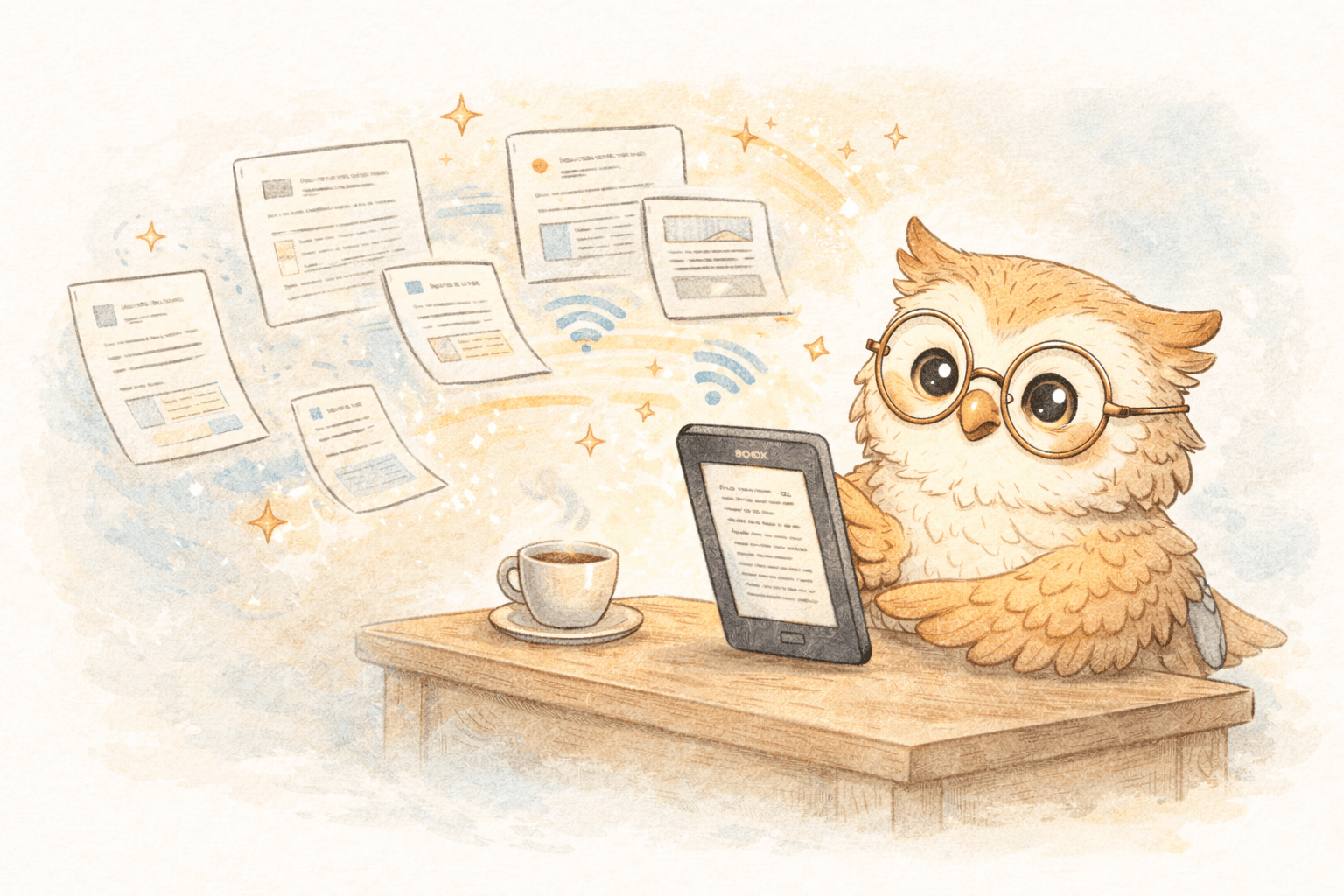
The fix is simple: send web articles to Kindle in seconds so your reading time is calm, focused, and distraction-free—on e-ink, where long-form content actually feels good to read.
This guide covers the best ways to do it, what to avoid, and how to build a workflow you’ll stick with.
Why read articles on Kindle instead of your phone? 📖
Phones are amazing at many things. Deep reading isn’t one of them.
E-readers (Kindle + Boox) are built for long-form reading, which means:
- Less eye strain: e-ink isn’t blasting light into your face for 45 minutes straight.
- Fewer distractions: no notifications, no app hopping, no “quick check” that turns into 20 minutes.
- Better for long reads: essays, deep dives, and research papers feel natural instead of exhausting.
- Battery that doesn’t nag you: days to weeks of reading without thinking about charging.
- Accessibility controls: font size, spacing, and contrast that make long sessions more comfortable.
If you want to read more—and retain more—getting articles onto your Kindle is one of the most practical upgrades you can make.
Traditional methods: why they’re cumbersome 🔌
Most people start with one of these:
USB / cable transfer
Works, but it’s slow, manual, and kills spontaneity.
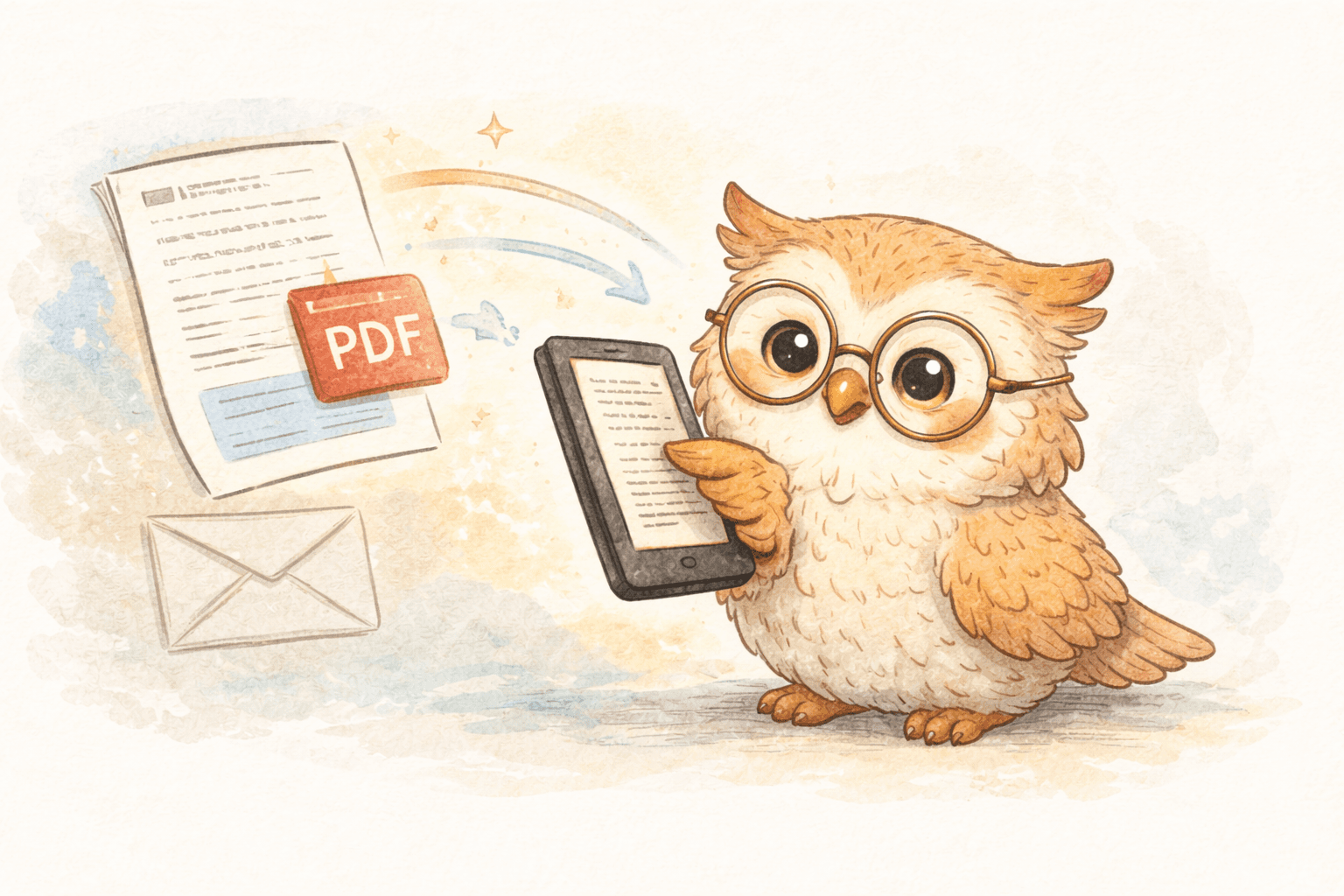
Email-to-Kindle
Also works, but comes with common annoyances:
- inconsistent formatting
- waiting around for delivery
- dealing with device email addresses + approved senders
- content that sometimes arrives… weird
Manual conversion tools (Calibre, etc.)
Powerful, but it turns “save this article” into a project.
All of these technically work. They just add enough friction that you stop doing it consistently—then your “reading later” pile grows and your tabs multiply.
The modern solution: one click, it shows up ⚡
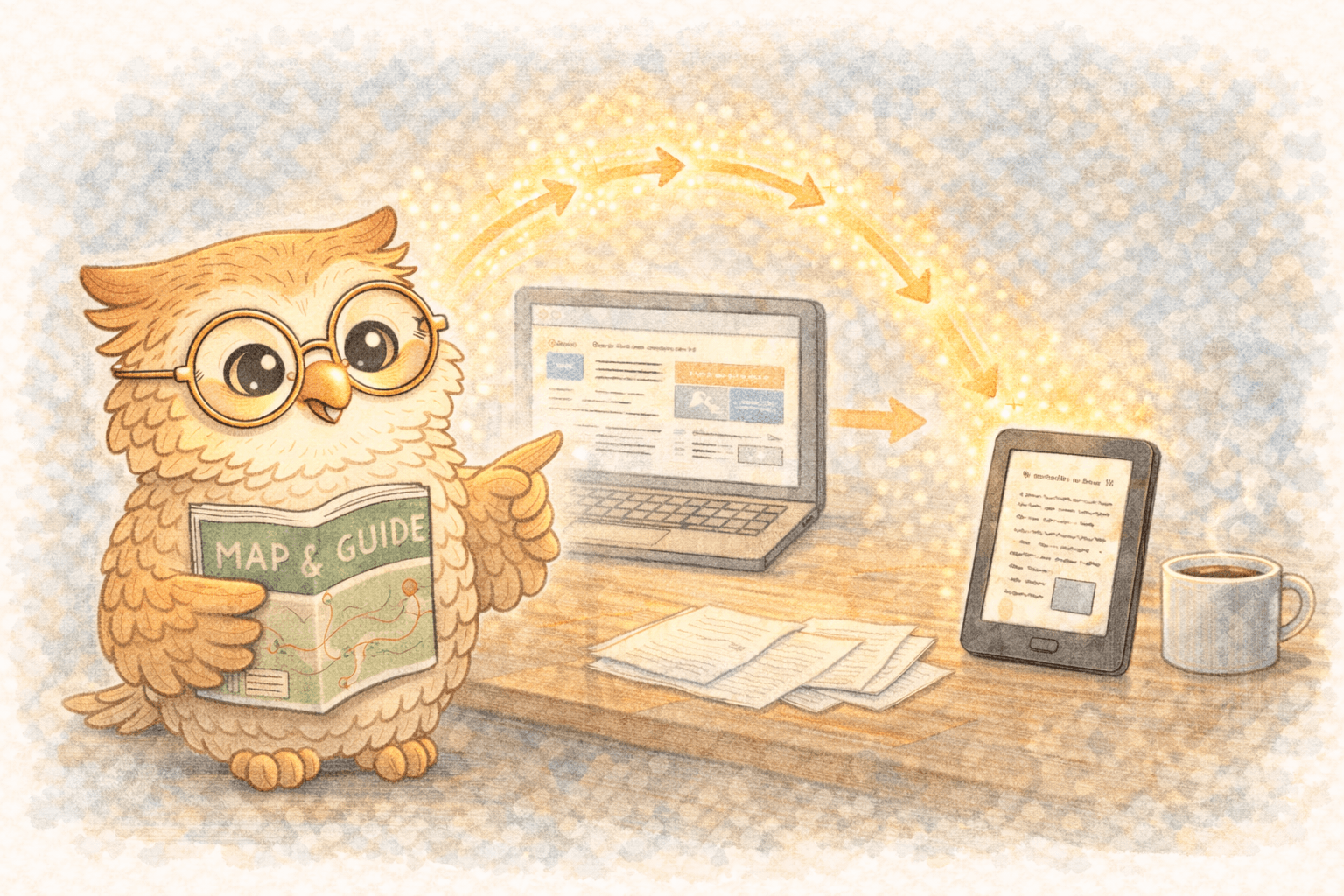
A modern “send to Kindle” workflow should feel like this:
- Find an article
- Click Save to Kindle (browser extension)
- It shows up on your device shortly after—clean and readable
Behind the scenes, the right tools do the boring stuff for you:
- strip away clutter (menus, ads, cookie banners, “subscribe” popups)
- convert the content into a Kindle-friendly format
- deliver it via cloud sync (no cables)
The goal is simple: capture instantly, read later on e-ink.
Step-by-step: how to send web articles to Kindle 📋
You’ve got two realistic options:
Option A: Amazon’s native “Send to Kindle”
Great if you only do this occasionally.
How it works
- You use Amazon’s Send to Kindle tools (email/share/browser methods)
- Amazon converts it and delivers it to your Kindle library
Pros
- Free
- Official
- Good enough for basic documents
Cons
- Conversion quality can be inconsistent on complex pages
- Delivery speed varies
- Not designed for a smooth “reading queue” habit
Option B: an e-reader-first service (best for daily use)
If you want “one click → clean formatting → fast delivery,” a dedicated service makes this painless.
Look for:
- a browser extension
- automatic cleanup + conversion
- fast delivery
- support for PDFs + newsletters + docs (not just web pages)
Optimize your workflow so you actually read 🎯
Saving articles is easy. Reading them is the point.
Save fast, read in batches
- Save during the day
- Read during a dedicated window (commute, couch, coffee, bedtime)
Keep your queue sane
A Kindle full of “someday” reads becomes background guilt.
Aim for a queue you can clear weekly.
Organize lightly
Don’t overbuild a tagging system you’ll abandon. A simple “To Read / Reference / Done” rhythm works better than perfection.
Highlight what matters
If reading is part of learning, highlights turn reading into something reusable later.
Choosing the right tool 🛠️
When comparing options, these are the features that actually matter:
✅ One-click saving
✅ Clean formatting for e-ink
✅ Fast delivery
✅ Supports PDFs + docs + newsletters
✅ Optional highlight export (Notion / Readwise / Google Docs)
Red flags:
- “read later” tools that expect you to read inside their app
- slow delivery that breaks your flow
- messy formatting that makes you avoid using it
Where LibSpace fits in ⚡
If your goal is "e-reader is the destination," LibSpace is built for that workflow.
What it gives you
- One-click saving via Chrome or Safari extension
- Fast delivery (Kindle usually within 1–2 minutes; Boox often faster)
- Clean, e-ink-friendly formatting
- Supports web articles + PDFs + newsletters + docs, plus sources like arXiv/medRxiv
- Optional highlight export to Notion / Readwise / Google Docs
- 30-day free trial with no credit card required
- Pricing: $0.99/month or $9.99/year
LibSpace integrates directly with Kindle and Boox devices. Plus, if your e-reader supports Google Drive or Dropbox (like Supernote, PocketBook, or others), LibSpace works with those too.
It's meant to quietly do the job and get out of your way.
FAQ 🤔
How long does it take to arrive on Kindle?
Depends on the method. Email-based flows can be slower. Dedicated tools are typically faster and more consistent.
Can I read offline?
Yes—once it’s on your Kindle, you can read it anywhere.
Will I run out of storage?
Unlikely. Articles are small. Your bigger problem will be “too much saved content,” not storage.
What about privacy?
Check the service’s policy. Look for encrypted transfer and no creepy “we sell your reading habits” nonsense.
Conclusion: your next step (the one that matters) ✅
Don’t try to overhaul your whole reading life today. Just do this:
- Pick a method (Amazon native or a dedicated service)
- Send three articles you genuinely want to read
- Read them on your Kindle this week
If you want the low-friction, modern version:
👉 Try LibSpace: https://libspace.io
No credit card for the trial. Save one article and see how quickly it lands on your Kindle.
Because “saving for later” isn’t the goal. Reading is.
Darcy Reno
Founder of LibSpace. 25+ years in technology leadership across the media and entertainment industry — including roles at Constellation Software, Electronic Arts, and Technicolor, and working alongside studios like DreamWorks Animation, Disney, and Nickelodeon. A passionate reader, Darcy built LibSpace to bridge the gap between online content and e-readers, with a focus on long-form articles, research, and journalism.
Try LibSpace Free for 30 Days
Send articles, documents, and web pages to your e-reader in seconds. No credit card required.